Institution quickstart
Register an institution, confirm the email, set a password and understand the review states.
Register
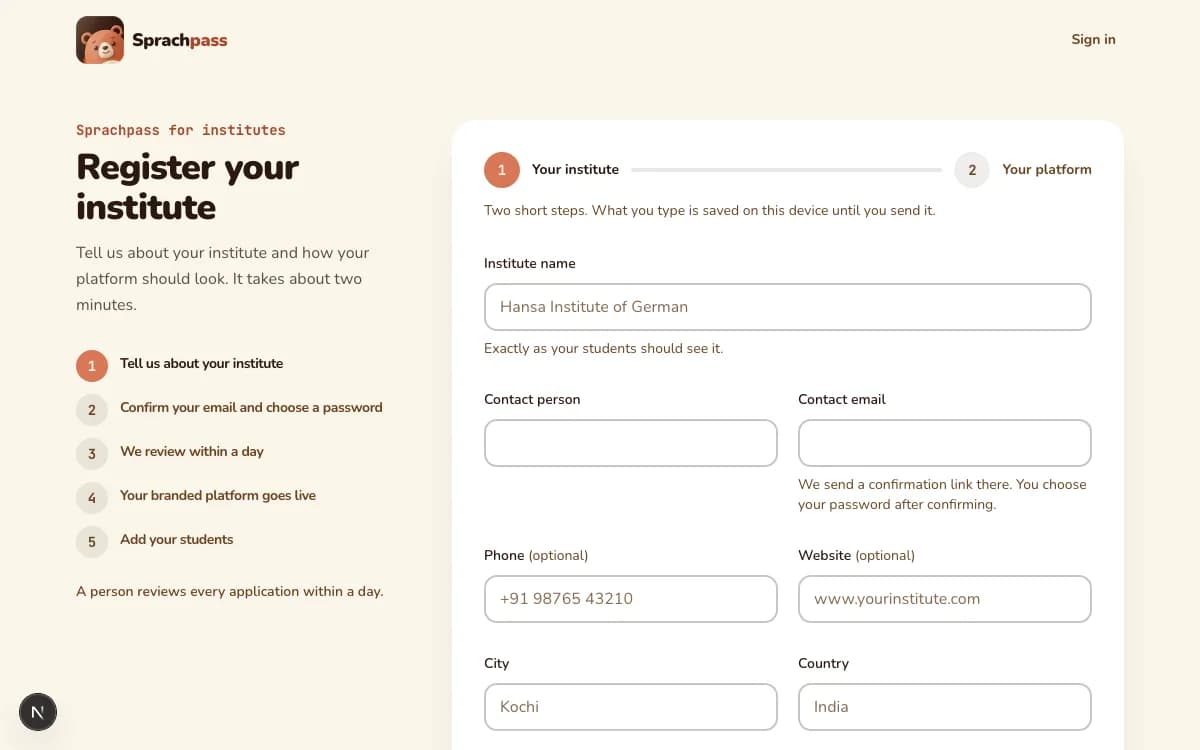
Complete and review the institution details. The first form saves the details and sends a confirmation link. It does not send the application for review yet.
Submit an institution registration for review.
- Who can do this
- An institution owner
- Before you start
- Institute and contact details; Access to the contact email; Authority to represent the institution
Steps
- What changes
- The first form saves the application details and sends an email confirmation; The final password action sends the application for review
- Cost
- No payment. The first form saves the details and sends an email. The application is sent for review only after email confirmation and password creation.
- Can you undo it?
- The applicant can stop before submission. After submission, contact support to correct or withdraw it.
- You know it worked when
- The Application received message appears and states that the application will be reviewed.
- If something goes wrong
- The email is already in use; Required details are missing; The confirmation link has expired; The application could not be sent. Correct the marked fields, request another confirmation message, retry the final send, or use institution sign-in if an account already exists.
- Stop when
- The applicant cannot access the contact email; The user has not reviewed the application details immediately before the final send
- Do not
- Do not treat the first form as a submitted application or skip email confirmation and password creation.
Institution access
Confirm email
Open the link sent to the contact email. It confirms the address and opens password creation. If it does not arrive, check the address and request a new message from the page.
Set password
Choose and confirm the institution password. Save password and send application is the final action that sends the application for review. Do not share the password with students.
Review
The institution page shows the current application or account state and the next available action.
- Email not confirmed: the registration page asks the applicant to open the confirmation link. A password has not been chosen yet. Confirm the email or request another message.
- Under review: sign-in opens a page that says the application is under review and shows the submitted details. Licence and student tools remain locked until approval. Wait for the decision or contact support if important details changed.
- Approved: sign-in opens the institution dashboard. Set up the institution space, buy licences, and manage students.
- Not approved: sign-in opens a page explaining that the application was not approved. Read the email with the reason and reply to it or contact support.
- Account paused: sign-in opens a page explaining that the institution space is offline. Contact support to restore it.
Sign in
Use the institution sign-in page. Existing approved owners can use the available password or verified Google sign-in option.