
For institutes
Your students enter through your institute's front door
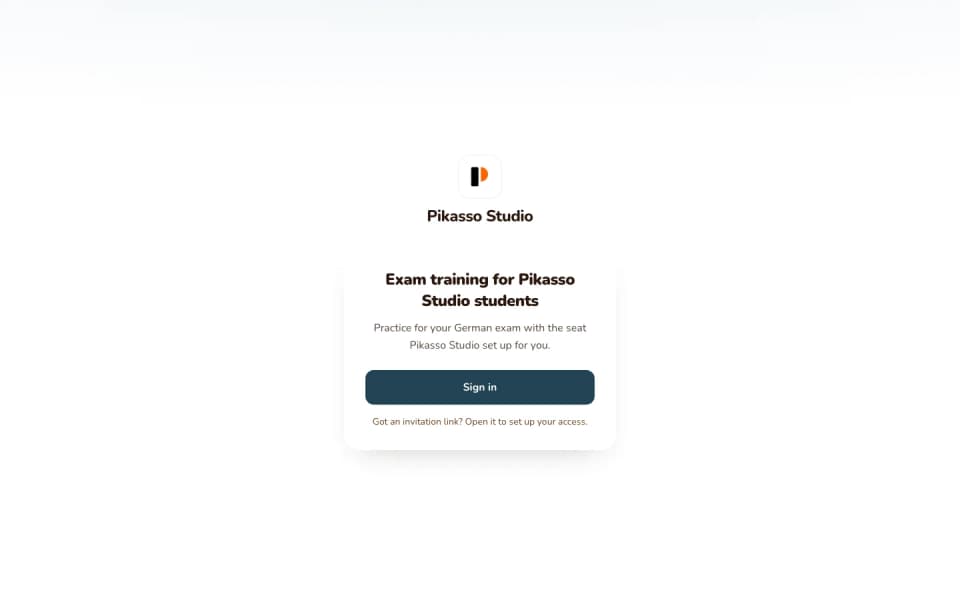
Your institute name, logo and accent colour lead the student experience on a dedicated Sprachpass subdomain.
Step 1 of 6
Choose your subdomain, logo and accent at registration.
Pick a subdomain of 3 to 42 letters, digits and hyphens; the form checks it is available as you type. Upload a PNG, JPEG or WebP logo up to 2 MB and 512 pixels, or send it later, and choose one of five accent colours.
Step 2 of 6
Confirm your email and wait for approval.
Set your password from the confirmation link and your application goes to review. A person reviews every application before the portal goes live.
Step 3 of 6
The portal goes live at your subdomain.
Once approved, your subdomain answers with your logo, your name and your accent. You can change the logo, accent, name and contact email later from Settings.
Step 4 of 6
Invite a student.
Assign a licence and send the invite. The student opens the one-time link, sets a password, confirms the exam target you set, and lands in the practice space under your name.
Step 5 of 6
Later visits start at your door.
The student signs in at your subdomain with their email and password. One seat has one active session and two live devices, and a sign-in on a new device signs the old one out with a plain message.
Step 6 of 6
When the licence ends, the door says so.
The student sees that their training window with your institute is over, that their work is saved, and your contact email. Renew the seat and they continue; there is no checkout anywhere on your portal.
How it runs, step by step
Step 1 of 6: Choose your subdomain, logo and accent at registration.
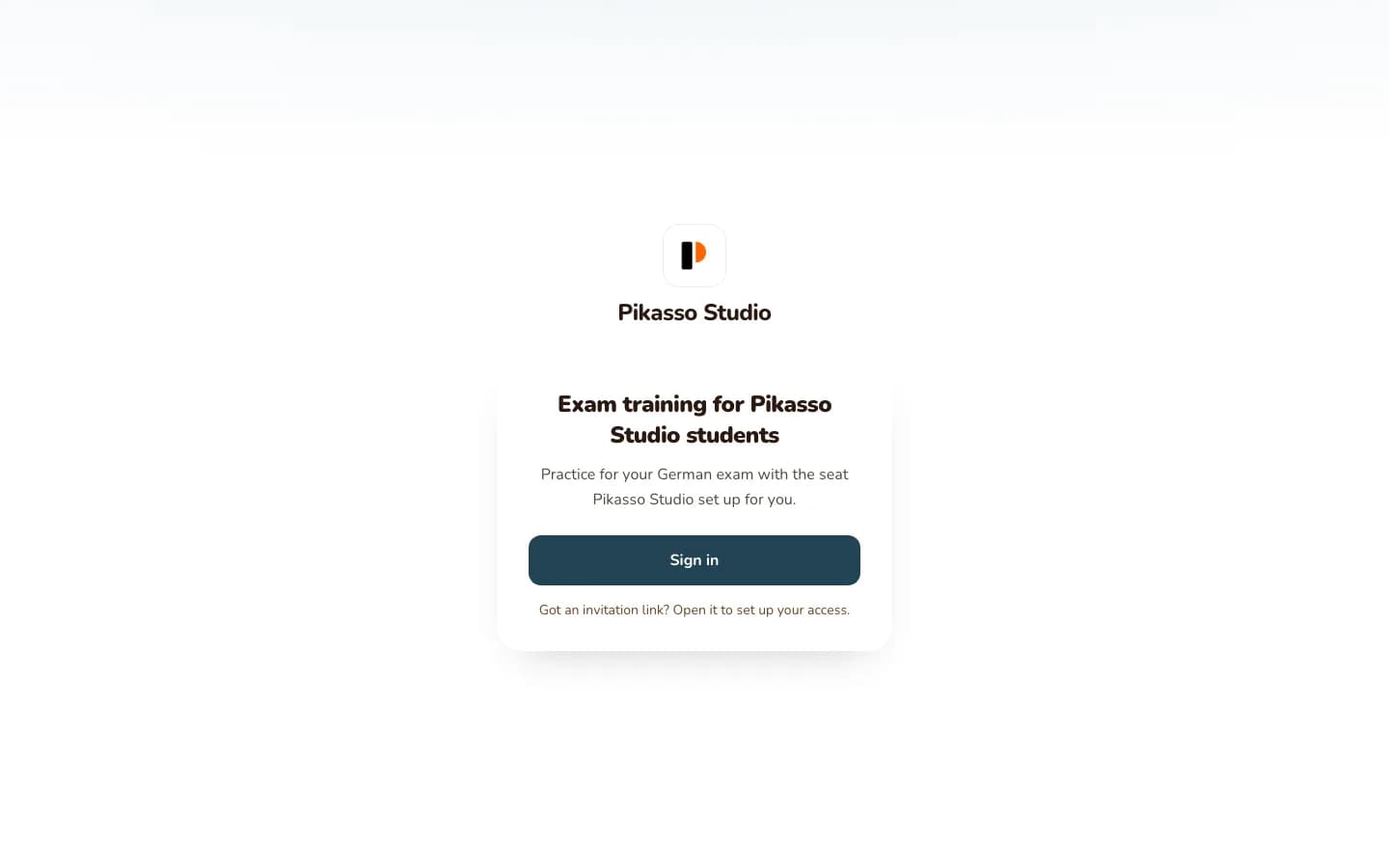
Students open your link, sign in with the account you invited, and practise under your institute's identity. They never see retail plans, upgrade prompts or a Sprachpass checkout.
The problem and the outcome

The problem an owner has.
Recommending an outside app hands your students to a brand that is not yours. They see someone else's logo, someone else's plans, and the question of why the institute is needed at all.

What changes with a branded portal.
The portal opens at your subdomain with your logo, your name in the tab title and your accent colour on every screen. Bruno and the exam practice are the same for every institute; the identity around them is yours, and there is no retail door anywhere inside.
The questions that get slow with an outside app
| The question | With an outside app | With your branded portal |
|---|---|---|
| Where do students go to practise? | A link to a third-party site under its own brand | Your subdomain on sprachpass.com, chosen at registration, live on approval |
| Whose logo do they see? | The app's logo, everywhere | Your logo and name on every portal screen, including the tab title |
| Will they be sold a retail plan? | Whenever the app decides to upsell | Never; no retail plans, no upgrade prompts and no Sprachpass marketing emails on your students' screens |
| What happens when their access ends? | A paywall in the app's name | A plain access-ended screen that names your institute and asks them to contact you |
Who can do what
What each role sees on the portal
| capability | Owner | Admin | Teacher | Student |
|---|---|---|---|---|
| Choose the subdomain at registration | yes | no | no | no |
| Change the logo, accent, name and contact email | yes | no, owner only | no | no |
| Sign in at the branded subdomain | workspace only | workspace only | workspace only | yes |
| See the institute's name and logo on every portal screen | workspace | workspace | workspace | yes |
| See retail plans or upgrade prompts | no | no | no | never |
| Sign in with Google on the portal | no | no | no | no; email and password only |
| Change their own exam level | for any student | at assignment | no | confirms once, then locked |
| Receive Sprachpass marketing emails | no | no | no | never |


Licences and limits
Branding, doors, seat allowances
Bruno and the practice product are identical for every institute; only the identity around them changes.
Limits and licences
| Rule | What it means |
|---|---|
| Subdomain | One per institute, chosen at registration, 3 to 42 characters of letters, digits and hyphens with no hyphen at either end and no double hyphen, live once the application is approved |
| Logo | Optional at registration; PNG, JPEG or WebP, up to 2 MB and 512 pixels on the longest edge; shown on every screen of your portal |
| Accent | One of five pre-tested colours so text stays readable on every screen of your portal |
| Name | The institute's name leads the tab title and every page of your portal; there is no product name beside it on the student header |
| What is the same everywhere | Bruno, the exam practice, mocks and grading are identical for every institute and for retail learners |
| What students never see | Retail plans, upgrade prompts, Sprachpass marketing emails, or a checkout of any kind on your portal |
| Access ended | The portal shows a plain access-ended screen with your contact email; renewal goes through the institute |
| Devices and sessions | Two live devices for each student and one active session; the institute can reset a student's devices |
Coming next
What is on the way, honestly

Your own domain.
A branded Sprachpass subdomain is live today. Connecting the portal to the institute's own domain, such as practice.yourinstitute.com, is a roadmap item that needs routing and certificate work on our side.
Your own layout.
Every portal uses the same Sprachpass layout under your branding. Arranging the portal your own way is planned as part of the institute OS.
Homework and assessments in the portal.
Students practise exam formats and mocks today. An assignments module where teachers upload homework and students submit it in the portal is on the roadmap.
A learning month before the exam month.
The roadmap adds a learning journey on your own course content ahead of exam preparation, tracked in the same portal.
Other modules
The rest of the institute cockpit
Questions
What owners ask before registering
Will our students see Sprachpass branding?
Your subdomain carries your logo, your name and your accent colour on every screen. Bruno and the practice product are shared by every institute, and there is no retail plan and no upsell aimed at your students.
Can we use our own domain?
Not yet. The portal lives at your chosen subdomain on sprachpass.com today, and connecting an institute's own domain is a roadmap item.
Do students need a Google account or an app?
No, each student opens the invite link, sets a password and practises in the browser on any phone or laptop. Google sign-in is not offered on the portal.
Can I change the logo or colour after we go live?
Yes. Logo, accent, institute name and contact email are edited from Settings, and the change shows on the portal straight away.
What does a student see when their licence ends?
A plain screen saying their training window with your institute is over, that their work is saved, and your contact email. There is no checkout anywhere on your portal.
Is the exam practice different from the retail site?
No. Institute students get the same Hören, Lesen, Schreiben and Sprechen practice and the same mocks for their board and level, under your identity, with the seat allowances above.
How fast can the portal go live?
Register, confirm your email and set a password, and a person reviews the application. Once approved your subdomain is live and you can assign the first licences the same day.
Continue
Sources: Sprachpass decision log, the tenant door pages, the branding code and the institute roadmap epic.
All sources
- DECISIONS.md, 2026-08-04 (business landings carry no pricing) and 2026-08-29 (page bodies still show no prices; the shared header and footer may link to Pricing) (DECISIONS.md)
- DECISIONS.md, 2026-07-15: partner program model (one-month licence from assignment, stacking renewals, one-year shelf life, refunds on unassigned licences within 30 days, approval-gated onboarding) (DECISIONS.md)
- DECISIONS.md, 2026-07-22: level lock and one session per seat (DECISIONS.md)
- DECISIONS.md, 2026-08-04: one register verb, email confirmation then password, application reviewed before the workspace goes live, no Google at registration (DECISIONS.md)
- Partner registration UI notes: subdomain check, optional logo, five accents, application reviewed within a day (docs/superpowers/specs/2026-07-15-partner-licensing/PHASE-C-UI-NOTES.md)
- Institute licence and partner student-analytics cockpit spec (25 scored tasks a day, 4 mocks per ISO week) (docs/superpowers/specs/2026-08-03-institute-license-and-analytics.md)
- Seat usage caps (25 scored tasks per day, 4 mocks per ISO week) (src/lib/partners/usage.ts)
- Institute role capabilities (src/lib/partners/capabilities.ts)
- Two live devices per seat (supabase/migrations/20260828100000_harden_partner_device_registration_lifecycle.sql)
- Owner-only workspace routes today: settings and branding, invite resend, device reset, level change (src/lib/partners/owner.ts)
- The five tenant accent colours (src/lib/partners/accents.ts)
- Tenant logo limits: PNG, JPEG or WebP, 2 MB, 512 px longest edge (src/lib/partners/logo.ts)
- Subdomain shape: 3 to 42 characters, letters, digits and hyphens (src/lib/partners/subdomain-shape.ts)
- Tenant sign-in: institute-named seat, sign-in elsewhere signs this device out (src/app/(en)/t/login/page.tsx)
- Tenant access-ended screen: work stays saved, renewal goes through the institute, no checkout on tenant surfaces (src/app/(en)/t/expired/page.tsx)
- Tenant page titles carry the institute's name and logo (src/lib/partners/tenant-metadata.ts)
- Epic #421: B2B institute OS roadmap (custom domains, teacher effectiveness, assignments, teacher-directed practice, learning journey, per-institute layout)
Ready for your first batch
Open your own front door.
Register your institute, pick your subdomain, logo and accent, and your students can sign in under your name the day the workspace is approved.